Global Cache
This guide explains how to use the Global Cache Dashboard for managing and uploading IR commands for devices like A/Cs, TVs, Fans, and more in the Loft App.
Note
- The Global Cache Dashboard is accessible only for Dealers and Distributors.
- End-users or clients do not have access to this dashboard.
1. Login Access
- To log in to the Global Cache Dashboard, use your Loft App email and password.
- Google or Phone login methods are not supported.
- You must use your registered email ID and password only.
2. Sign-Up Process
- The Sign-Up process is handled via the Loft Application.
- A client account does not have access to the dashboard — only Dealer or Distributor accounts can access it.
- If you haven’t registered an account yet, click here and follow the signup steps.
3. Account Management
- Dashboard accounts are maintained only for Dealers and Distributors.
- You can use this dashboard to add, edit, or delete IR command data for devices.
- To capture IR signals (e.g., from an A/C remote), use ILearn software to convert them into the Global Cache IR format, then upload the data under the appropriate Brand and Protocol.
PREREQUISITES
- ILearn Software Installed
- Global Cache IR Device Connected to PC
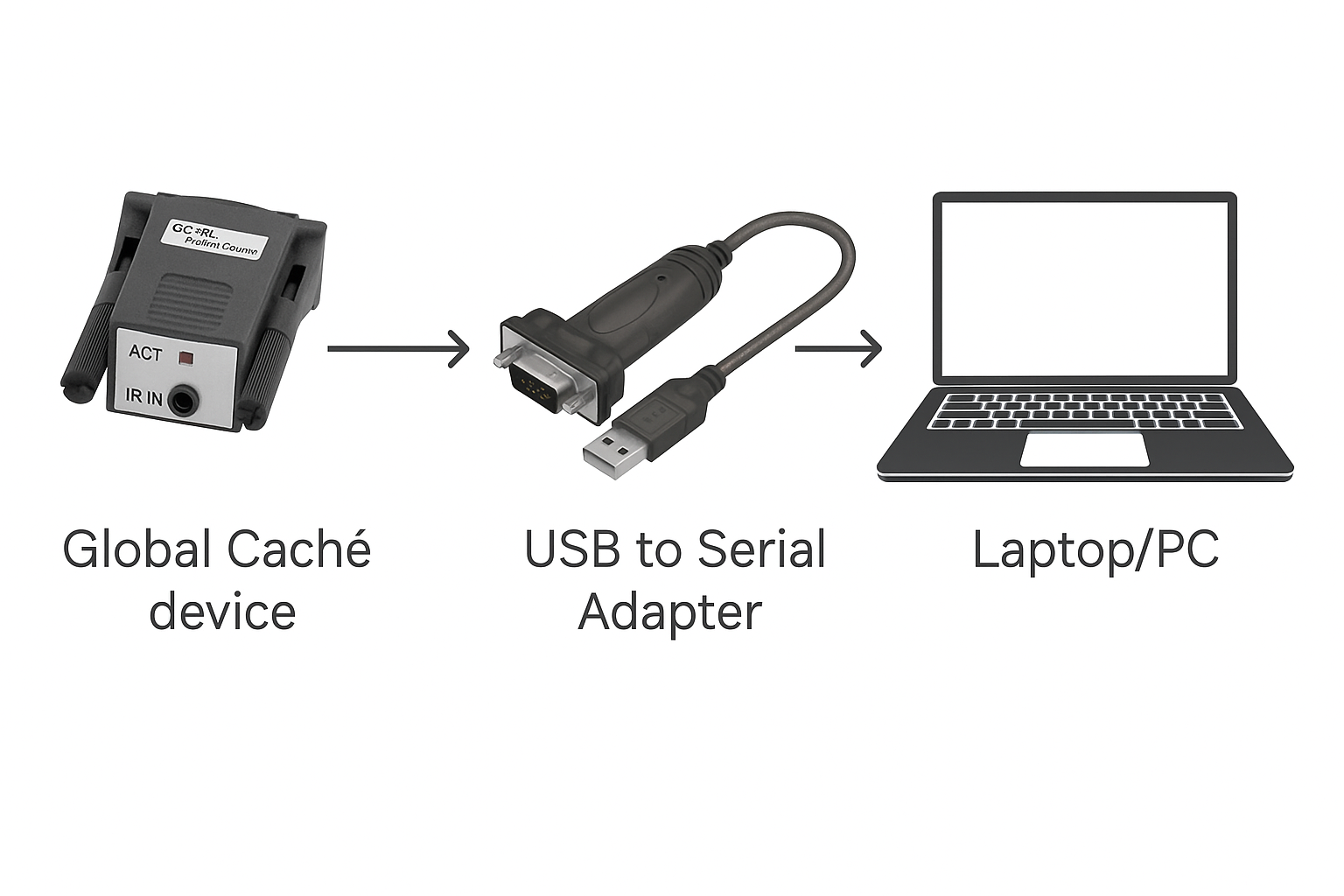
🔹 PHASE 1: Using ILearn Software
Step 1: Install and Launch ILearn
- Download ILearn software from: https://www.globalcache.com/files/software/iLearn.exe
- Install the software and open it after installation.
Step 2: Connect Device (Select COM Port)
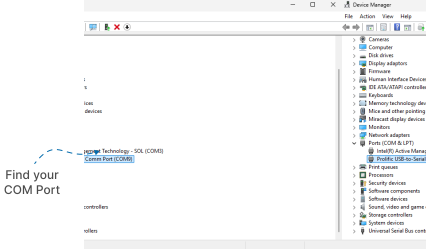
- Identify Your COM Port
- Before connecting, you must know the COM Port assigned to your Global Cache IR Learner (USB) device — this is essential for using the iLearn software.
- Open Device Manager on your PC/laptop.
- Expand the Ports (COM & LPT) section.
- Locate your USB Global Cache device from the list and note down its COM Port number (e.g., COM3, COM4).
-
Open iLearn Software
- Launch the iLearn software on your PC/laptop.
-
Connect the Device
- In the Connection section, under IR Learner, select GC-IRL Serial.
- In the COMPort dropdown, choose the correct COM Port number that you noted earlier.
- Click the Connect button to establish the connection.
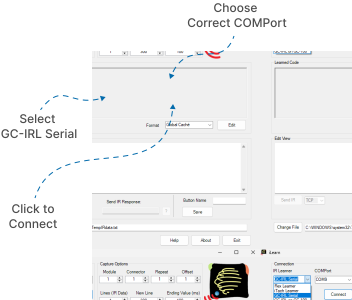
✅ You are now ready to begin capturing remote control signals using the Global Cache IR Learner.
Step 3: Detect Remote Signals
(The same process applies for A/C, TV, Fan, Amplifier, or Projector remotes.)
Example for A/C Remote:
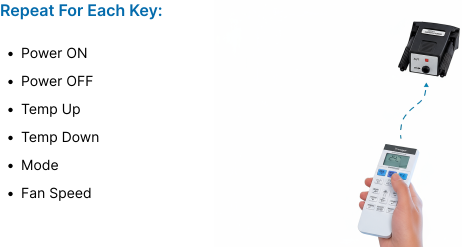
- Point your A/C remote toward the IR Learner device.
- Press a button (e.g., Power ON).
- The IR signal will be captured and displayed in Raw Data or HEX format.
- When the data is displayed, click on “Edit” to open it in Edit View.
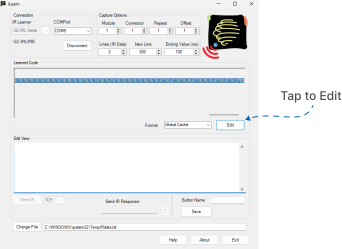
- Copy the entire data exactly as shown in the image below from Edit View. It must be copied precisely for it to work correctly.
- Repeat this process for all other keys such as Power Off, Temp Up, Temp Down, Mode, and Fan Speed.
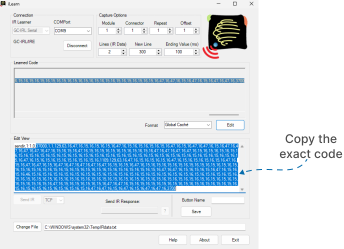
Use ILearn software to capture each button’s IR signal, then copy and save this data to enter it later in the Global Cache Dashboard.
🔹 PHASE 2: Entering Data into the Dashboard
Step 1: Login to the Dashboard
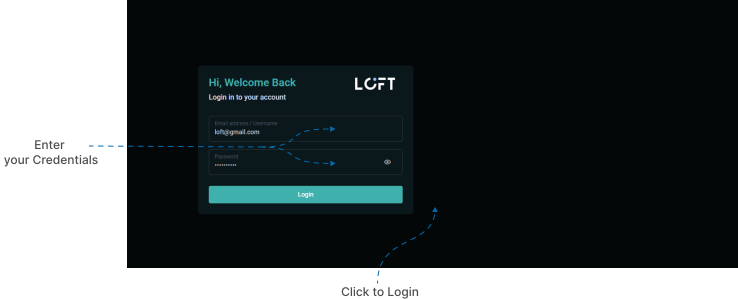
- Open the Global Cache Dashboard URL: http://13.233.244.111
- Use the same Loft App email and password for login.
- Enter your credentials in the respective fields and click Login.
Step 2: Create a New Brand and Protocol
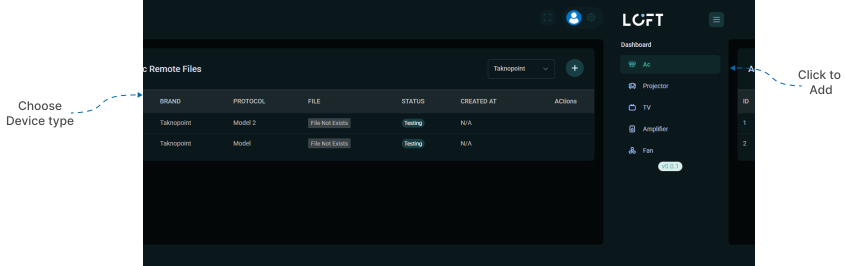
- From the left sidebar, choose your Device Type (e.g., A/C, TV, Fan, etc.).
- Click on the ‘+ Add’ button at the top-right corner.
- In the Brand Name field, select brand or enter the desired brand name and click Create Brand.
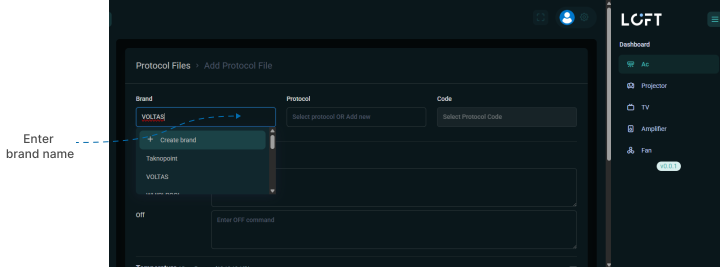
- In the Protocol field, select available protocol or enter the protocol name (usually the model name) and click Create Protocol.

- In the Code Type field, select Global Cache.
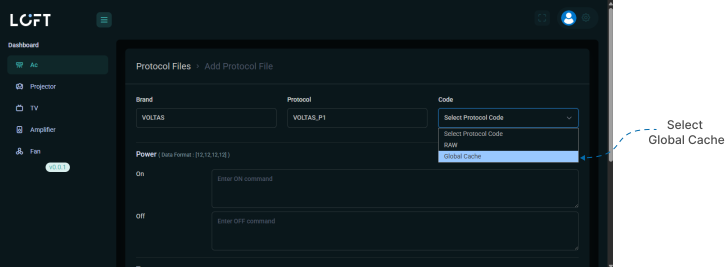
Step 3: Enter IR Data (Command Array)
- Once the brand and protocol are created, you’ll see device command fields.
- For each button (e.g., Power ON/OFF, Temp Up, Fan Speed), paste the IR data copied from ILearn.
- Make sure the command format follows array format, as shown below:
power_on: [138, 124, 44, 18, 200, 38, ...],
power_off: [138, 124, 44, 18, 250, 88, ...],
temp_24: [138, 124, 44, 18, 180, 99, ...]
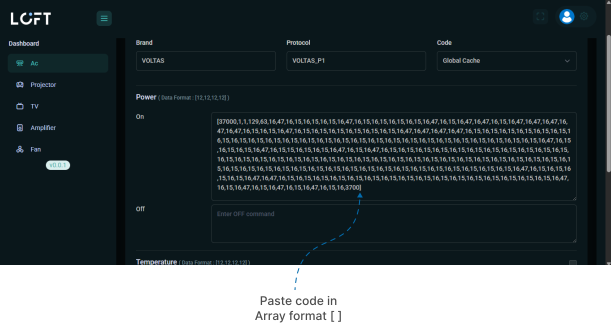
- Double-check the syntax — square brackets
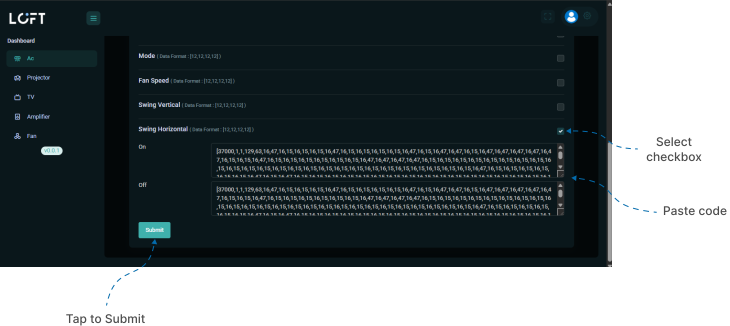
[ ]must be correctly opened and closed. - For the additional buttons like mode, fan speed, temperature ect, select the checkbox next to the corresponding option and paste the command code in array format [ ].
- After entering all commands, click on Submit to save.
🔹 Access and Operate Your Device
After successfully uploading the IR data:
- Open the Loft App.
- Log in with your Dealer or Distributor account credentials.
- To set up and operate your IR device, click here and follow the instructions.
Troubleshooting: Global Cache IR Setup
1. Device Not Detected in ILearn Software
Check the Connection and Software Configuration:
- Verify Physical Connection: Ensure the Global Cache IR Learner is securely connected to the PC via a USB cable.
- Test Different Port: Try plugging the device into a different USB port on your computer.
- Manual COM Port Selection: In the ILearn software, manually select the correct COM port if it's not auto-detected. Check Device Manager (Windows) for the port number if needed.
- Software Restart: Close and restart the ILearn software after changing the USB port or making configuration changes.
2. No Signal Captured from Remote
Ensure Proper Connection and Software Recognition:
- Verify Physical Connection: Ensure the Global Cache IR Learner is securely connected to the PC via a USB cable.
- Test Different Port: Try plugging the device into a different USB port on your computer.
- Manual COM Port Selection: In the ILearn software, manually select the correct COM port if it's not auto-detected.
- Software Restart: Close and restart the ILearn software after changing the USB port or making configuration changes.
- Remote Battery/Function: Ensure the remote control has working batteries and is transmitting a signal correctly (try pointing it at a phone camera to see the IR light).
3. IR Data Not Showing / Incomplete
Ensure Correct Data Format and Completeness:
- Correct Syntax: Use square brackets
[]to enclose the IR data.- Example:
POWER_ON:[138, 124, 44, 18, 200, 38, ...]
- Example:
- Verify Integrity: Double-check for common syntax errors such as:
- Missing commas between numbers.
- Missing opening or closing square brackets (
[or]). - Any other characters or spaces within the data field.
- Data Completeness: Ensure all required commands (e.g., Power On, Power Off, Temperature Up/Down, Fan Speed, Mode) are entered and complete before saving or exporting the data.
4. Login to the Dashboard
Address Access and Browser Issues:
- Verify URL: Double-check that the correct and complete URL for the dashboard is being used.
- Network Access: If the dashboard is hosted locally or on a private network, ensure your device is connected to the same network.
- Browser Cache: If login fails or the page appears corrupted, try refreshing the page (
F5orCtrl+R), or clear your browser's cache and cookies.
5. Device Not Showing in LOFT App
Confirm App Setup and Network Status:
- Room Assignment: Verify that the IR device has been successfully added to a specific room within the LOFT app. Devices not assigned to a room may not appear in the main list.
- Correct Device Type: Confirm that IR 1 for A.C (or the appropriate device type) was selected during the initial device setup process in the app.
- Wi-Fi Network: Ensure both your mobile phone/tablet (running the LOFT app) and the IR device are connected to the same Wi-Fi network.
6. Brand/Protocol Not Detected in App
Verify Protocol Selection and Upload Status:
- Protocol Selection: Check that the correct IR protocol corresponding to the device brand (e.g., A.C unit) was selected in the app.
- Using 'Others': If your specific brand is not listed, you must select the Others protocol.
- Data Upload: If using Others, ensure the custom IR data was correctly uploaded and assigned to that specific protocol on the backend/dashboard.
- Submission Check: Re-verify that the protocol data was submitted and deployed successfully via the dashboard.
7. A.C Not Responding to App Commands
Troubleshoot IR Transmission and Data Accuracy:
- Relearn Critical Commands: Try relearning fundamental commands (Power, Temperature Up/Down, Mode) using the ILearn software to ensure the data is accurate and complete. Re-upload this data.
- Check for Obstruction: Ensure there is a clear line of sight and no physical obstruction between the IR transmitter device and the receiving sensor on the A.C unit.
- IR Range: Verify that the IR device is placed within effective transmitting range of the A.C unit.
✅ By following the above steps, you can successfully capture, upload, and operate IR commands using the Global Cache Dashboard and the Loft App.